
After restoring a backup, MQTT isn't working anymore
Symptoms
After restoring a CoCoS backup from one system onto another, the MQTT connections (used by connectors, services and webapplications) aren't working anymore.
Details
After restoring a backup from one system (with MQTT-configuration "A") onto another system (with MQTT-configuration "B"), the configuration files for CoCoS are copied/restored, but the MQTT-configuration of the system itself isn't changed. Because of this, after restoring a backup, the MQTT configuration will be broken.
Application
This mainly happens when restoring a backup from one system onto another system, not sharing the same MQTT configuration. Due to this, the username and/or password for the MQTT-user won't match anymore. The MQTT-credentials/mosquitto configuration located at /etc/mosquitto/ is not included in the backup, but the CoCoS configuration files (/etc/cocos/gateway.conf and /usr/local/cocos/production/httpdocs/configs/mqtt.configs.php) are included in the backup. Because of this, a "mismatch" occurs when restoring a backup from one system onto another.
How to detect this:
The following commands/steps can be used to detect MQTT issues after restoring a back-up:
|
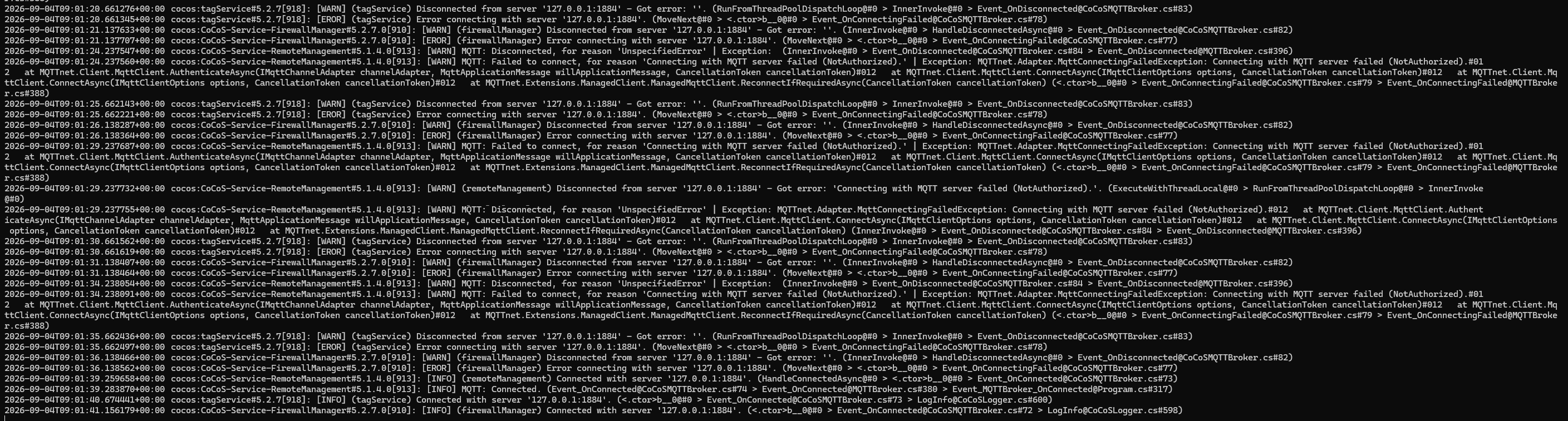
Executing the command below for finding MQTT related messages/errors/warnings in the cocos-syslog shows messages like:
|
|
|
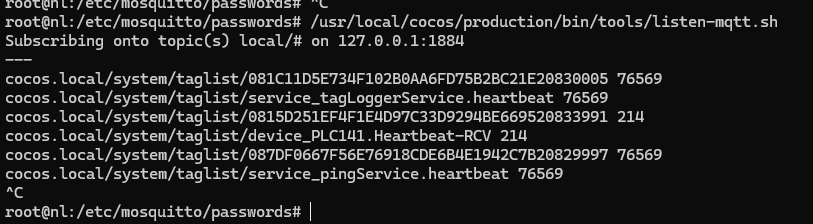
Execute the command below to "listen" onto the current MQTT connection:
|
|

Solution / Resolution / How To
This issue can be solved 2 ways, please read the options below carefully before choosing one:
- Overwrite the MQTT configuration for CoCoS, based on the configuration on the system.
When choosing this option, the configuration restored from the backup has to be adjusted to match the configuration on the system. If the credentials for MQTT on the CoCoS system are unknown, this option won't be possible without resetting them. Also, changing the MQTT configuration as restored from the backup will have to be executed every time the same backup is restored again. - Overwrite the MQTT configuration on the system, based on the configuration for CoCoS.
When choosing this option, the existing MQTT configuration of the system will be changed. This can be an issue when the MQTT configuration is more extensive than the "standard configuration" as set up during the installation of a new CoCoS system. Especially when, for example, bridging configurations have been applied, modifying the existing MQTT configuration can cause other features to stop working after the adjustment for CoCoS!
1. Overwrite the MQTT configuration for CoCoS, based on the configuration on the system.
When the credentials for the CoCoS MQTT-user and password are known (because the password is encypted in file /etc/mosquitto/passwords/mosquitto_passwords.txt, without knowing them, it's not possible to enter them in the configurationfiles for CoCoS), two files have to be adjusted. In the examples below, the username "CoCoS" and password "12345" will be used. When the MQTT-user and password are unknown, use the instructions mentioned in 2. Overwrite the MQTT configuration on the system, based on the configuration for CoCoS.
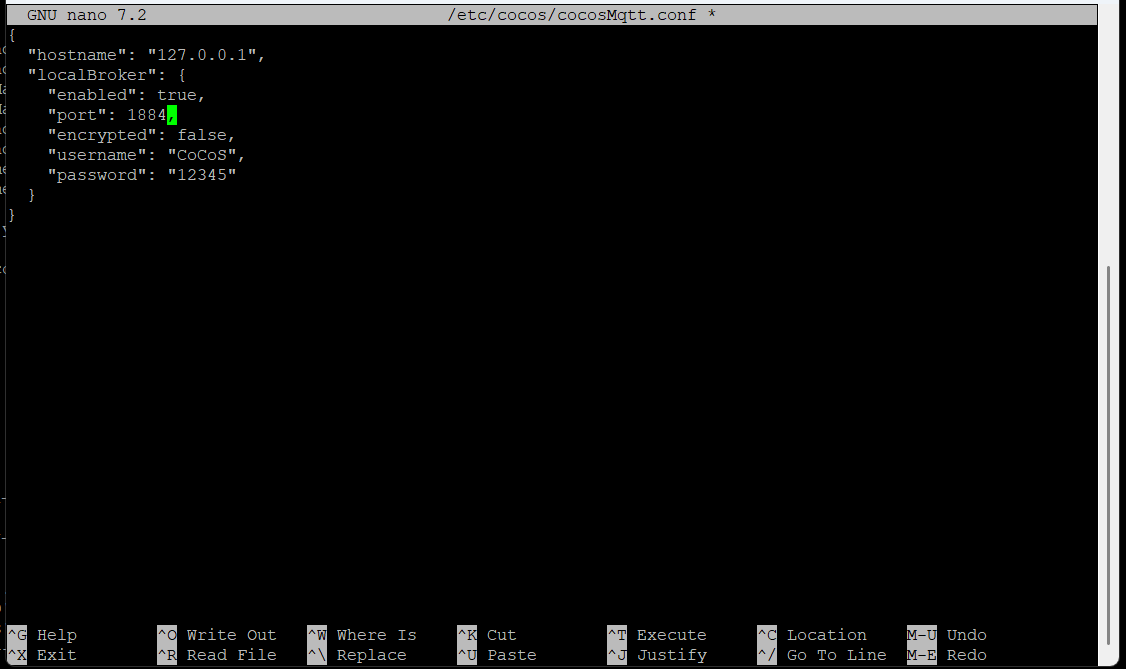
Open the file /etc/cocos/cocosMqtt.conf and change the values in keys "username" and "password". Use the command below: |
|
|
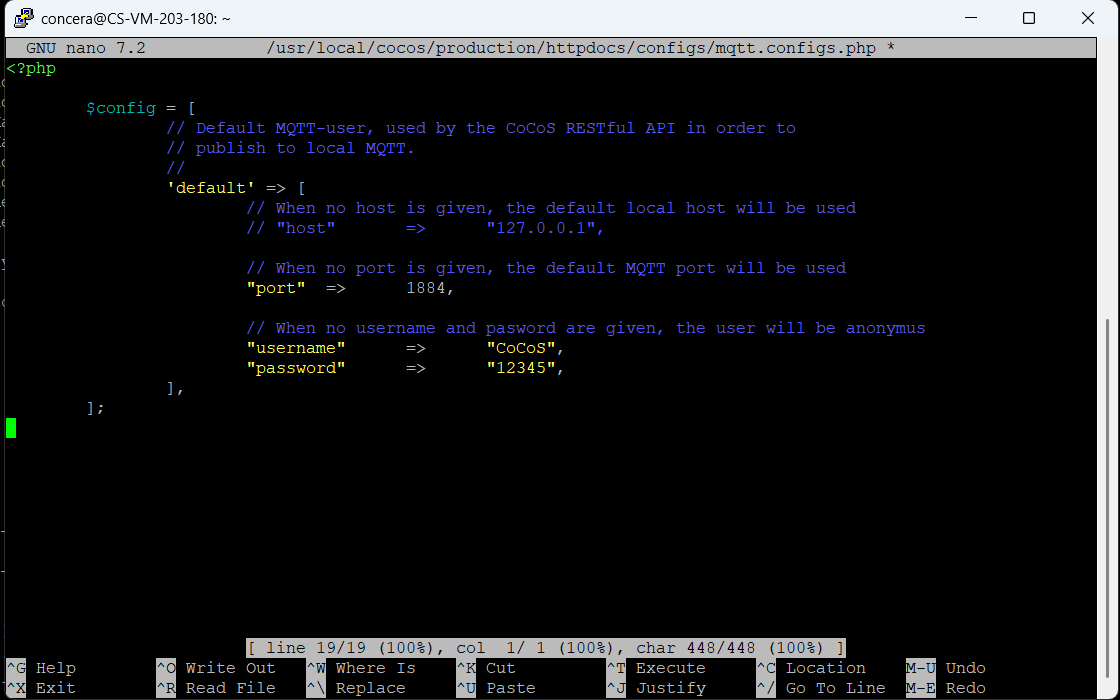
Open the file
|
|
|
Restart all services and connectors, using the command below:
|
2. Overwrite the MQTT configuration on the system, based on the configuration for CoCoS.
When the credentials for the CoCoS MQTT-user and password are unknown (because the password is encypted in file/etc/mosquitto/passwords/mosquitto_passwords.txt, without knowing them, it's not possible to enter them in the configurationfiles for CoCoS), the configuration files for mosquitto have to be adjusted/a new configuration has to be applied.
|
Open the file
In the examples below, the username "CoCoS" and password "12345" will be used. |
  |
Remove the existing password-file, used by Mosquitto, using the command below: |
|
|
Create a new password-file/add a new user into the password file, using the command below. Replace
|
|
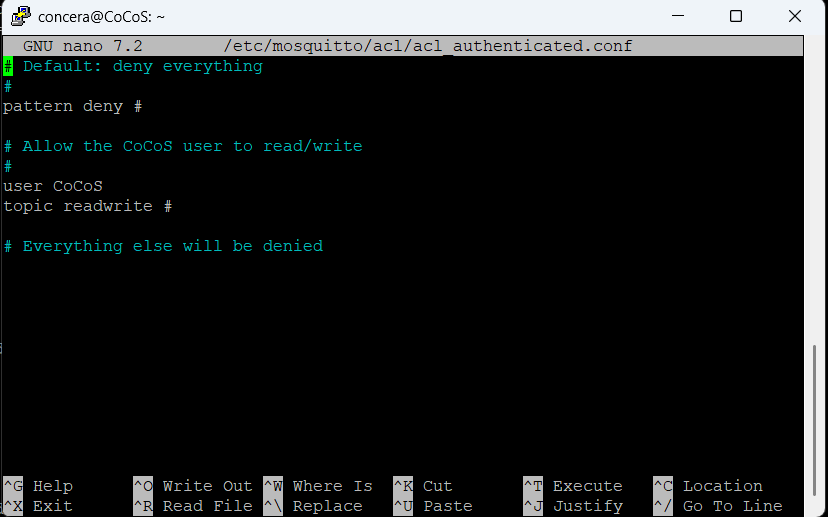
Update the ACL-file for authenticated access to make sure the correct username is entered. Use the command below:Make sure the user that the username from the backup is able to readwrite topics, using the configuration below. Replace
|
|
|
Restart Mosquitto, using the command below: |

Test/check
To test/check the new configuration after updating /etc/cocos/cocosMqtt.conf and /usr/local/cocos/production/httpdocs/configs/mqtt.configs.php or after updating and restarting mosquitto, use the command below to check if the MQTT credentials are correct:
/usr/local/cocos/production/bin/tools/listen-mqtt.shWhen all credentials are ok, this script should output all mqtt messages published onto the broker. If not, follow the steps on this page again.
References
Related Git issues: