CoCoS SERVER Scripting
Introduction
To create custom and more complex features in CoCoS forfilling every client wish, scripting is availble. Scripts in CoCoS are developed in PHP. Example and standard scripting can be found in our (just new) pulic CoCoS script repository. https://github.com/Concera-Software/CoCoS-Scripts
Why PHP as scripting language?
PHP is a popular general-purpose scripting language. Fast, flexible and pragmatic, PHP powers everything from a simple blog to the most popular websites, webapplications and RESTful API's in the world. It is widly supported and extremly good documented scripting languages the is easy to learn and very simular to languages like C, C++, Java and C#.
Using AI, engineers and developers can create scripts fast. Though AI may not know all details about using the CoCoS php library that is available in the scripts it still helps to create features in a short amount of time.
PHP References
|
The PHP Manual available online in a selection of languages. |
https://www.php.net/ |
| Learn to Code Free tutorials, examples and references. |
https://www.w3schools.com/php/ |
| Test of best PHP AI tools | https://www.qwe.edu.pl/tutorial/best-ai-tools-php-laravel-development/ |
Event driven and cyclic scripting
Scripts can run cyclic in a specific time-interval. For example, retreiving weather information for a heater control can be run every 10 minutes autonomously. The script can store data in tags so retreived information can be used by other entities (such as other scripts) in CoCoS.
Next to that Script can (also) run event driven. To realise event drive scripts just add triggers to a script. A trigger can be a change of the value of a tag or receiving data from a device. The screenshot below shows an example where a script controls an X-Protect Server (Video Management System) triggered by a dailstate of an intercom device. The essence of the example below is an implementation where a camera is moved to a preset position as soon as someone rings at an intercom on the premises.

Cyclic scripts are usefull for repeating tasks where event driver scripts are usefull to act on events from processes, users and devices in the blink of an eye. Event driver operations are usally small but fast and direct. Cyclic scripts often contain interfaces with other systems and are usually larger. Creating large event driver script can result in hogging resources and therefor is discouraged.
The script editor
|
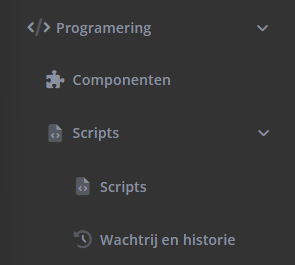
Scripting is available in the script item in the programming menu. Just extend the "Programming" item and click Scripts and then Scripts.
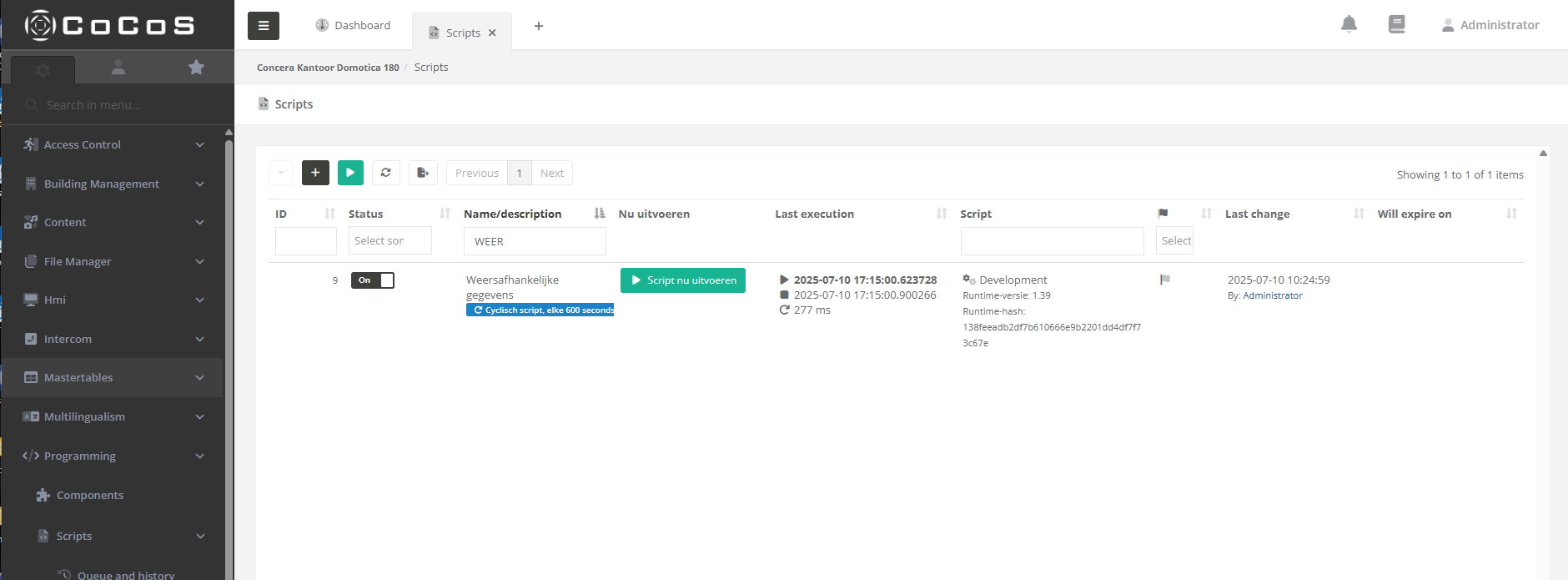
If it's you're first time using the installed CoCoS environment the list is empty.
Just hit the [ + ] button to create a new script or open an existing script for the list. |
|
The editor of the scripting environment opens and, if an existing script is opened, shows a view like the screenshot below. Next to the obvious code editor, there are en number of settings and tools available in this view that wil help to develop, analyze and debug the script.
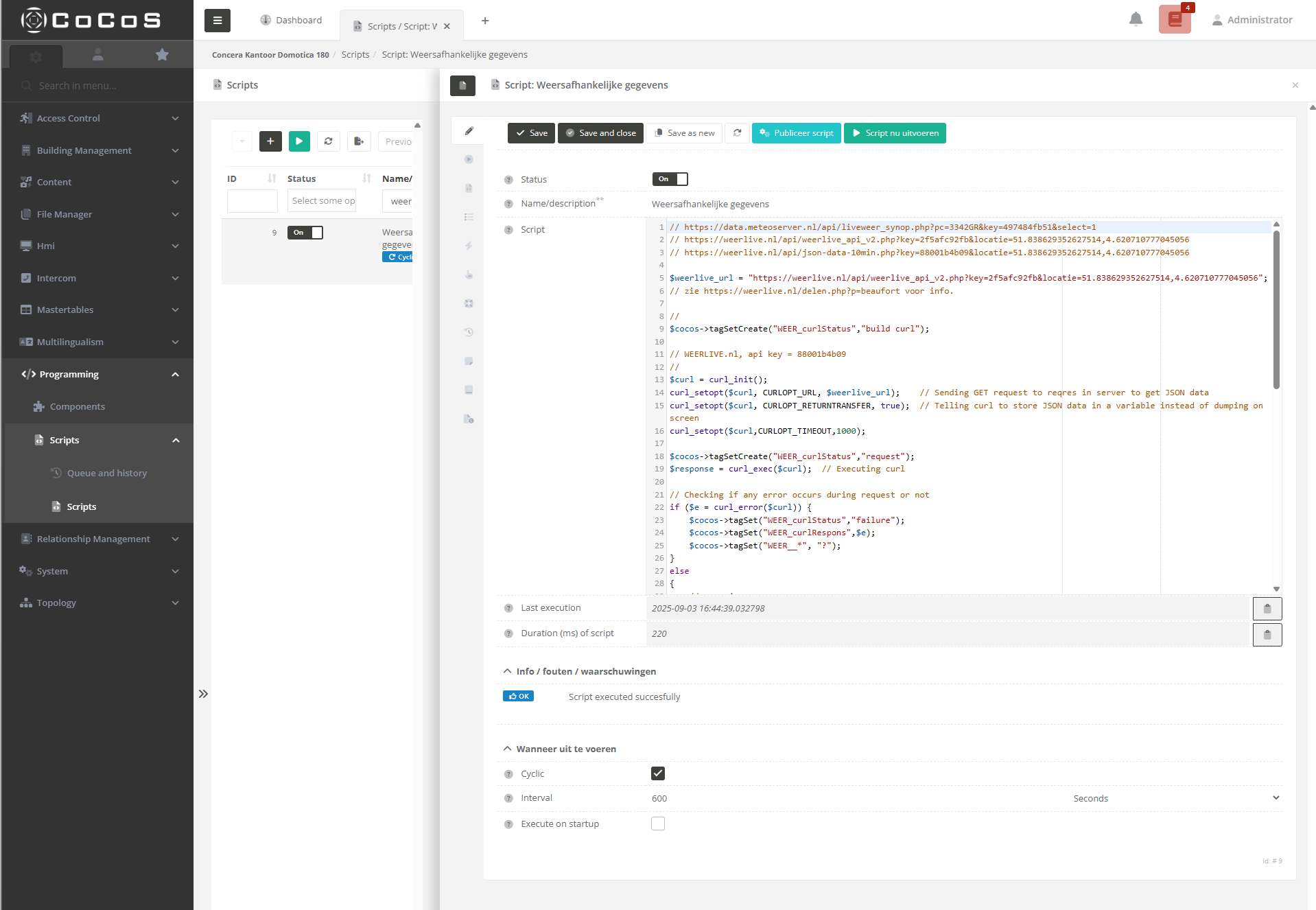
The header of the view shows the basic controls like save, save and close and save as new that are available for almost any item (entity) in CoCoS. Also the item reload button  is available in a lot of views tot refresh or reload the data of the item. In case of a script this button is used often to reload results of a script-run.

| Save | Save to script to the database |
| Save and Close | Save the script to the database and close the view (editor) |
| Save as New | Store the script as a new script. The name needs to be changed. History and versions are not copied because it's a NEW script. |
| Reload | Reload all data of the opened script (item). This button is often used during development to update the "Info/Error/Warning" field to check if any errors occured during the run. |
| Publish Script | Publish the script to use for production mode. Scripts that are not published are only execured when run manually or when in developer mode. |
| Run Script NOW | The script is executed instantly with entered source and value paramters that can be entered in a popup or, depending on the version, in the |
|
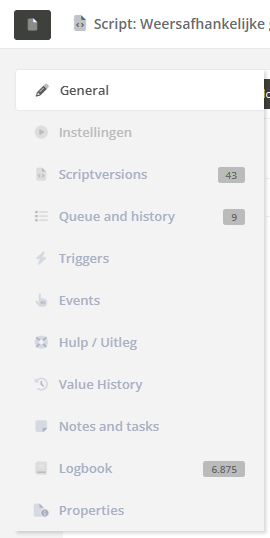
The script editor’s General tab is used the most, while the other tabs, although occasionally used, don’t appear on your screen regularly.
|
|
Script Global Arguments
| $value | Meegestuurde waarde in het script. Als een script wordt aangestoten vanuit een tag-trigger, dan is de waarde $value de waarde van de tag die de trigger veroorzaakte. |
| $source | De naam van het 'bron-object' wat zorgde voor de aanroep van dit script. Dit kan bijvoorbeeld de naam van een tag zijn (bij een tag-trigger) of de naam van een item, bijvoorbeeld wanneer een script wordt aangeroepen vanuit een hmi-item / event. |
| $arguments | all arguments passed to the script. |
| $bucket | data that is collected along the way leading up to the execution of the script. |
| $trace | Information about the cause of the triggering of the script. This can be a manual trigger, but also a trace of all events acros multiple devices that were involved in handling information causing the script to run. |
| $arguments_ref | indirect arguments are tags that contain a tag name that can be used in the scripot. |
| $return_tag | the tag that is patched with information from the script after the script has finished. |
| $cocos | Object (klasse) met functionaliteiten t.b.v. het ophalen/schrijven/aanmaken van tags, alsmede het schrijven van regels in het logboek. Hierbinnen zijn onderstaande methoden/funties beschikbaar. |
| $debug_level | The current debuglevel of the script. |
Quick-key's
| F11 | When pressing F11 when the cursor is active in the editor, the script-editor extend to the full size of the script-configuration view. |
| Ctrl+Alt+R | Save and Run the scirpt |
Debugging a script
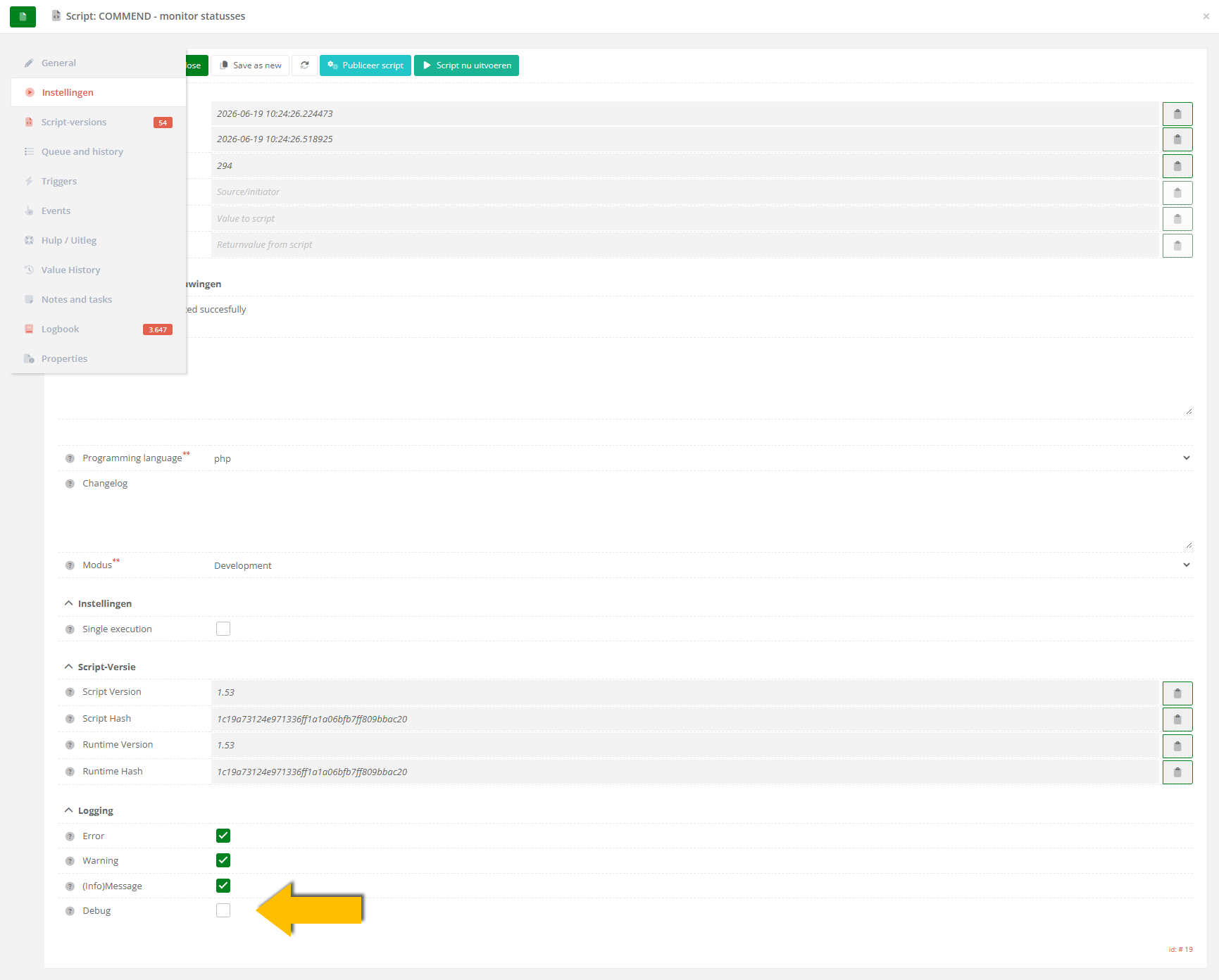
Debugging a script is done by using the logbook and using the $cocos->logDebug("message", <int:debug level>, <int:temporary_debug_level) function to produce debug information. If the debug level is set the line will be logged if the argument $debug_level is equal or lower higher to the level entered in the line. If the script has no debug level argument globally, the debug level can be passed as temporary_debug_level overruling the global script argument. To use the temporary_debug_level create a variable in the script like $temporary_debug_level.
To enable debug-messages in a script, check the box "Debug" in the settings of the script: