How to enable USB logging on Commend (ID5) intercom
Description
This article explains how to start and stop USB logging on a Commend ID5 and intercom station and other MX Device intercom stations.
USB logging can be useful when additional diagnostic information is needed from the intercom station. The logging is written to a USB stick that is inserted into the intercom.
Use this procedure when support asks for local intercom logs, or when the normal system logs do not contain enough information to investigate the issue.
How To
Start USB logging
|
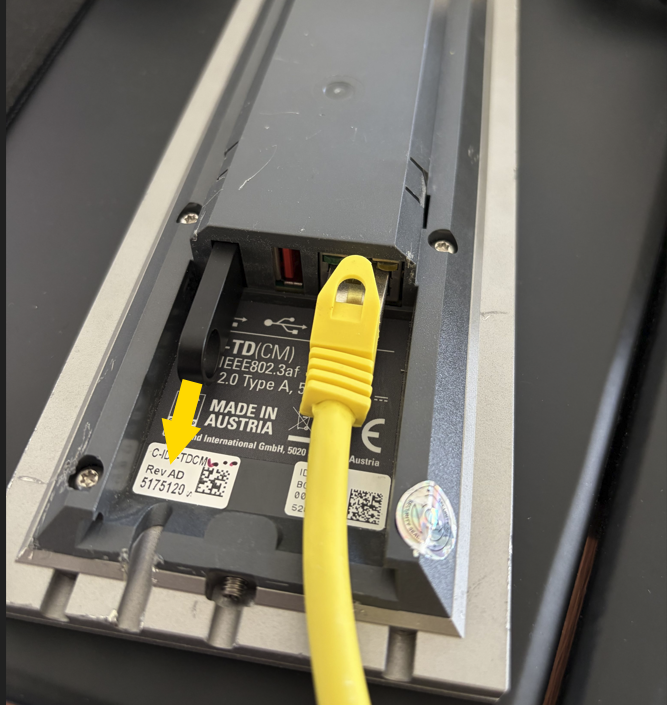
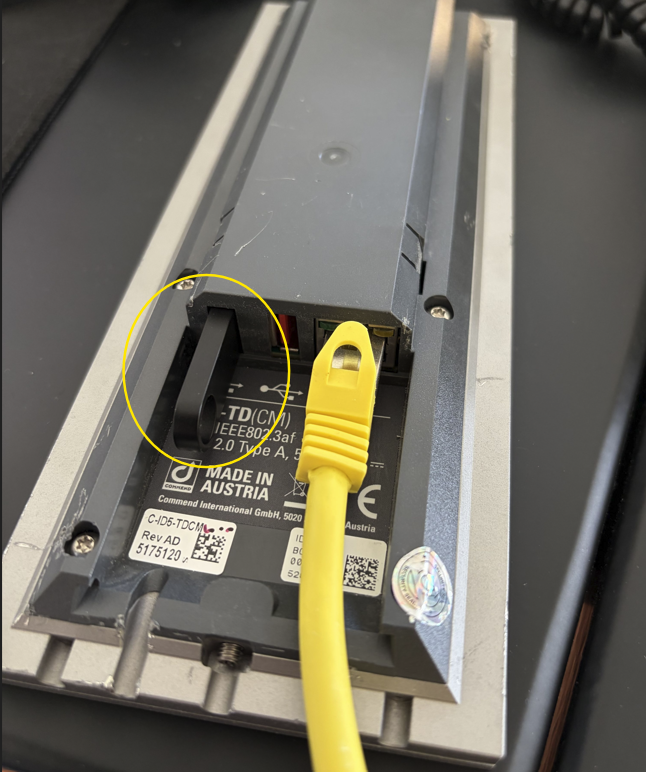
Put the USB stick in the intercom
|
|
|
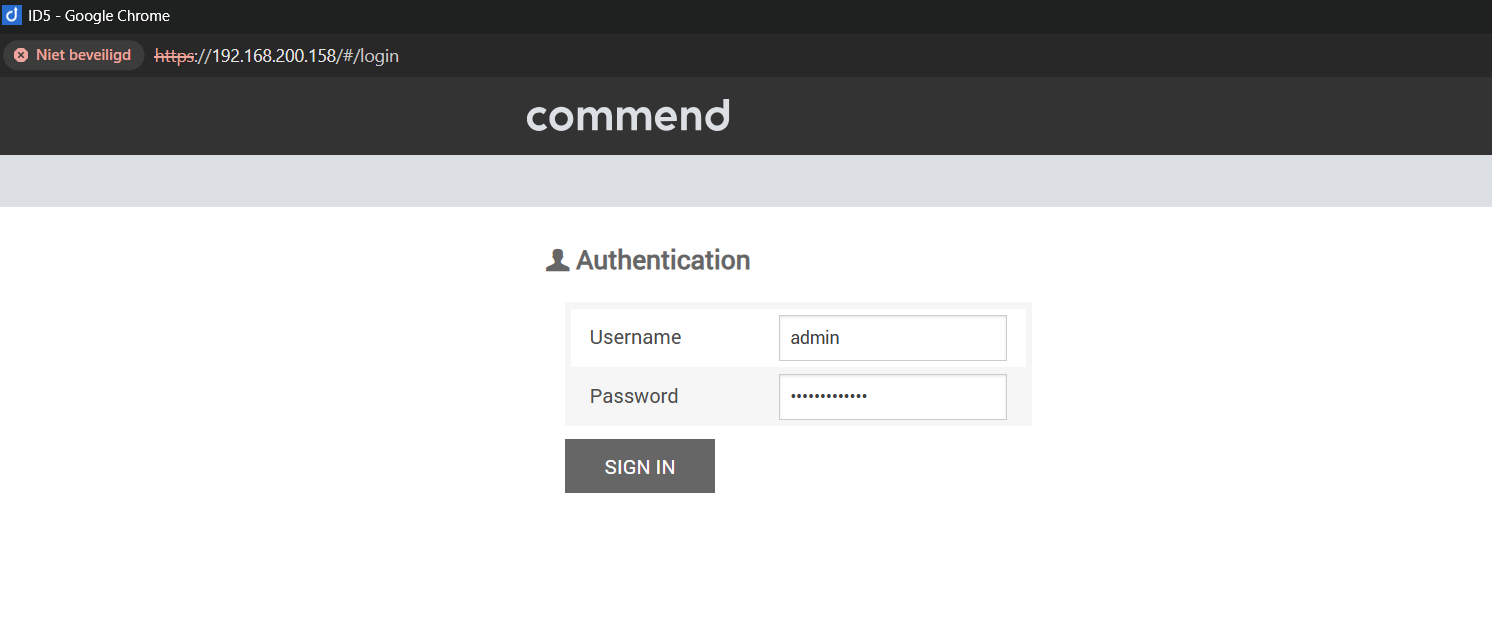
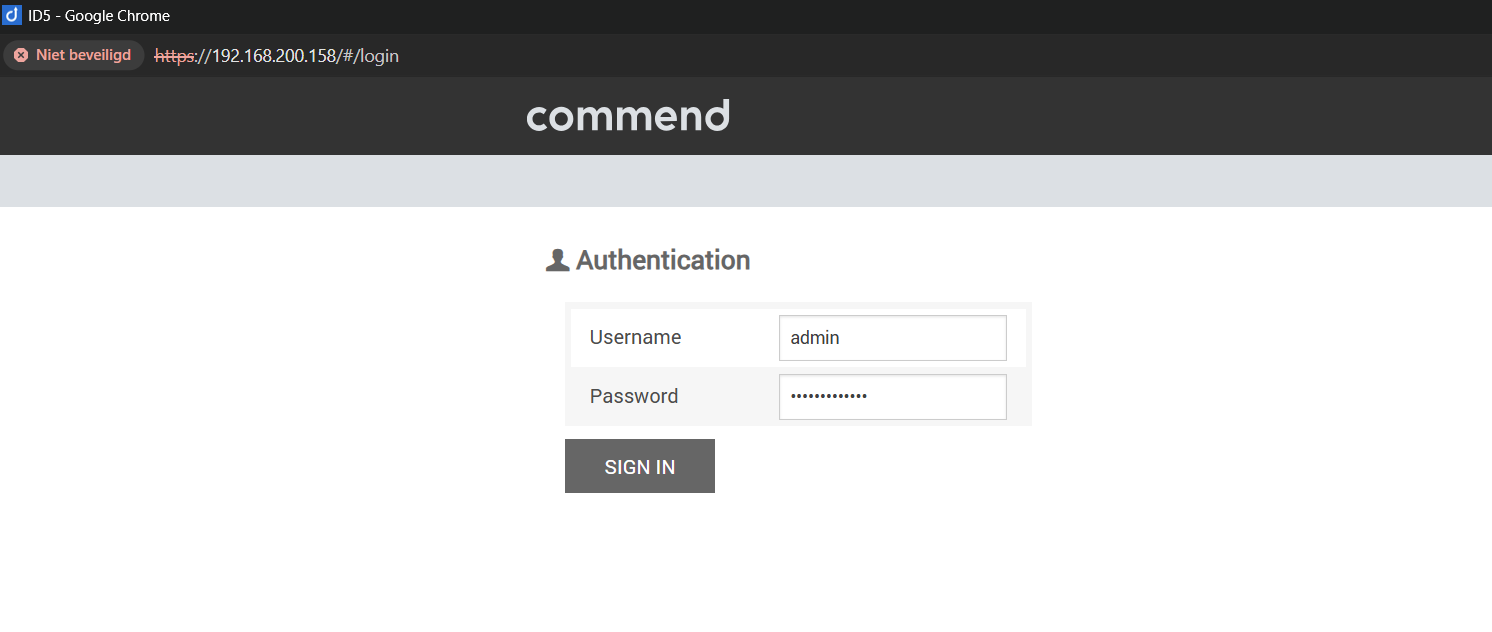
Open the web browser and navigate to the web interface of the intercom station.
The username and password must be provided by the client or Sonexus.
default user credentials: user: admin |
|
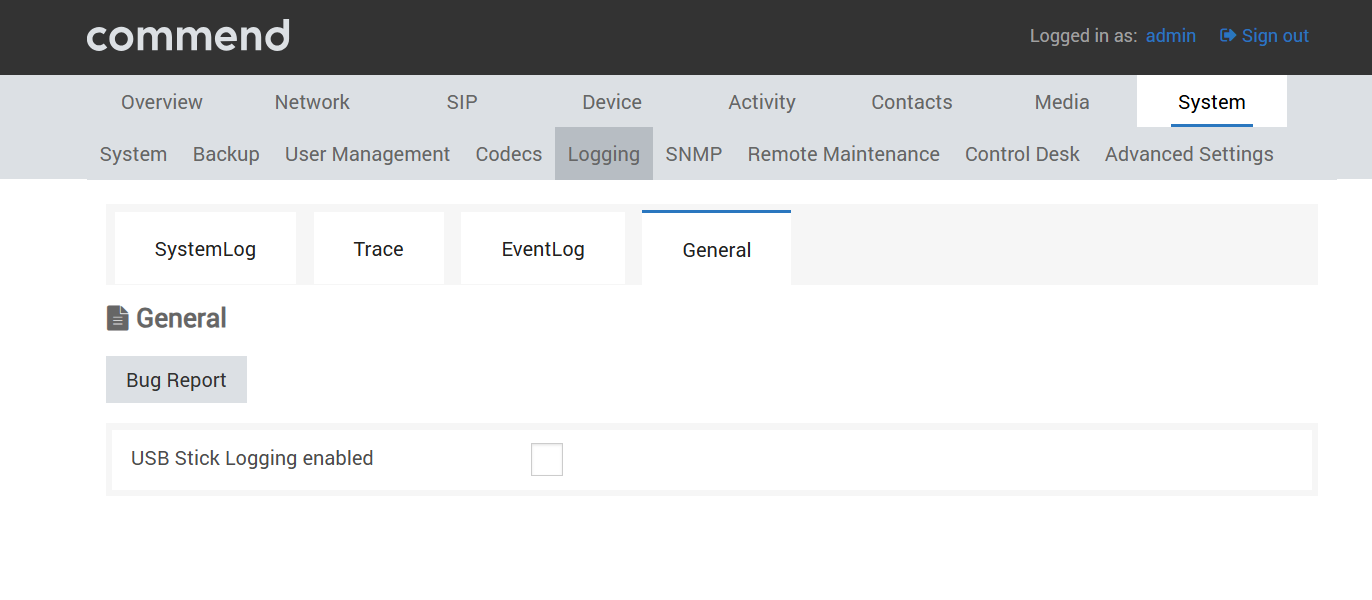
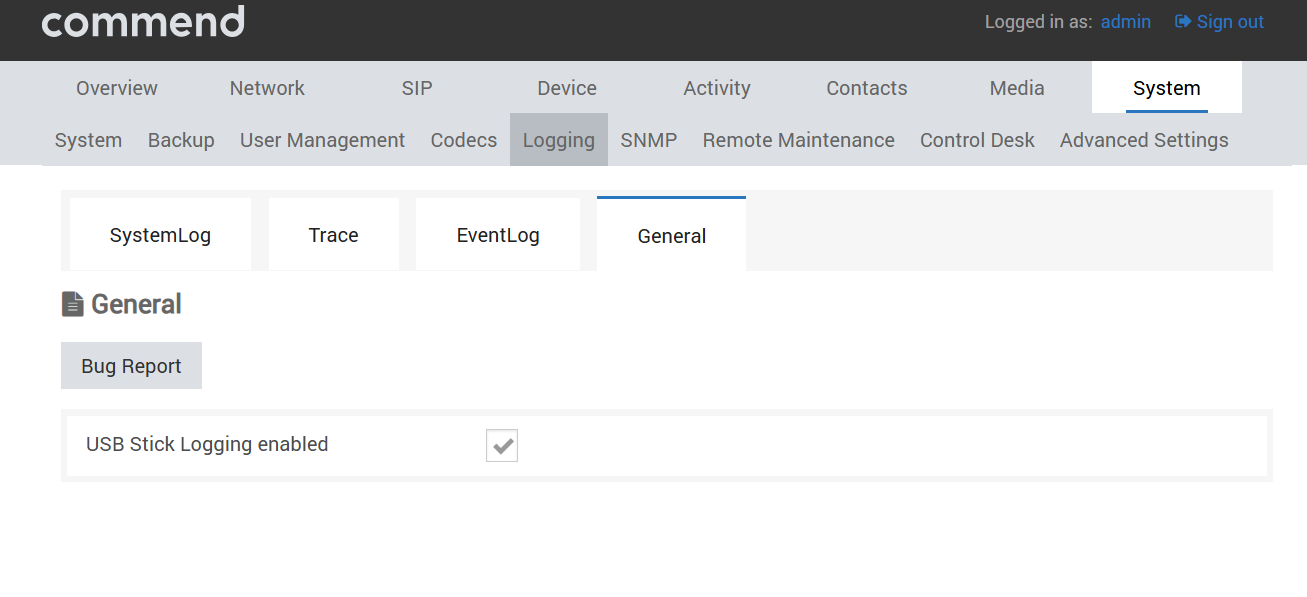
| Navigate to System > Logging > General and enable USB stick logging. |
|
| Click "save" to start USB logging. |
|

Stop USB logging
|
Open the web browser and navigate to the web interface of the intercom station.
The username and password must be provided by the client or Sonexus.
default user credentials: user: admin |
|
|
Navigate to System > Logging > General and disable USB stick logging. |
|
|
Click "save" to stop USB logging. |
|
|
Pull the USB stick out of the intercom.
Pulling the USB stick out before disabling USB logging may corrupt the data! |
|