
No camera video during conversation using SIP intercom stations
Symptoms
The intercom is online and connected; calls can be made, but there is no video signal.
Cause
Video disabled
Video must be enabled on all components involved in the call.
Video may be disabled on:
- The intercom station.
- The SIP server or connector ( in CoCoS ).
When video is disabled on one of these components, the call can still connect normally but only audio will be available.
Also check whether the device actually has a camera and whether the camera is enabled and available.
Codec issue
The intercom and the receiving device must support at least one matching video codec.
A video codec determines how the video is encoded and sent during the call. If both devices support different codecs, the call itself may still work and audio may be available, but no video connection can be established.
For example:
- The intercom offers H.264.
- The receiving device only accepts H.263.
- There is no matching video codec.
- The call connects, but no video is shown.
A codec problem can also occur when a video codec is supported by both devices but is disabled on one side.
Network Issue
Video requires more network bandwidth and may use different network connections or ports than audio.
This means a SIP call can connect successfully and audio can work while the video traffic is blocked or cannot reach the other device.
Possible causes include:
- A firewall blocks the network traffic used for video.
- Required RTP or media ports are blocked.
- NAT or network routing sends the video traffic to the wrong address.
- The network connection does not have enough available bandwidth.
- Packet loss or an unstable network connection prevents the video stream from working correctly.
When investigating a network issue, first check whether audio works normally. Working audio confirms that the entire call connection is not necessarily the problem; the issue may only affect the video media stream.
Known issues
| Software (e.g. Connector, Service) | Version | Issue |
| Asterisk Connector | 5.4.2 | This version can cause video problems because of a conflict between video handling and call recording. |
Solution(s)
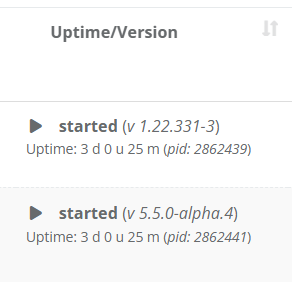
1. Check system
If a known software issue applies, resolve this first before changing codec or network settings.
Per known issue:
| 1. Check the installed version of the software mentioned under Known issues. |
|
|
2. Compare the installed version with the affected version listed in this article. |
|
|
3. If an affected version is installed, upgrade or downgrade to a version that does not contain the issue.
Contact your service provider when a different software version needs to be installed. |
|
2. Check whether video is enabled
| 1. Verify that video is enabled on the intercom. | |
|
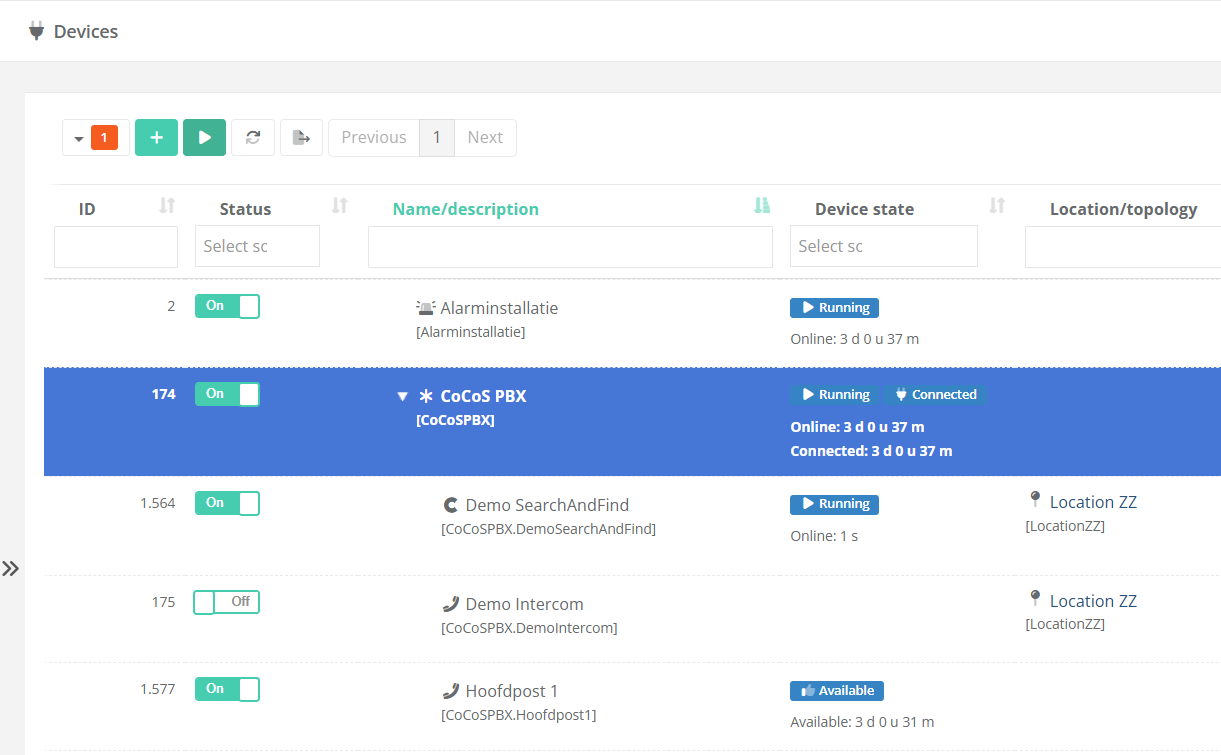
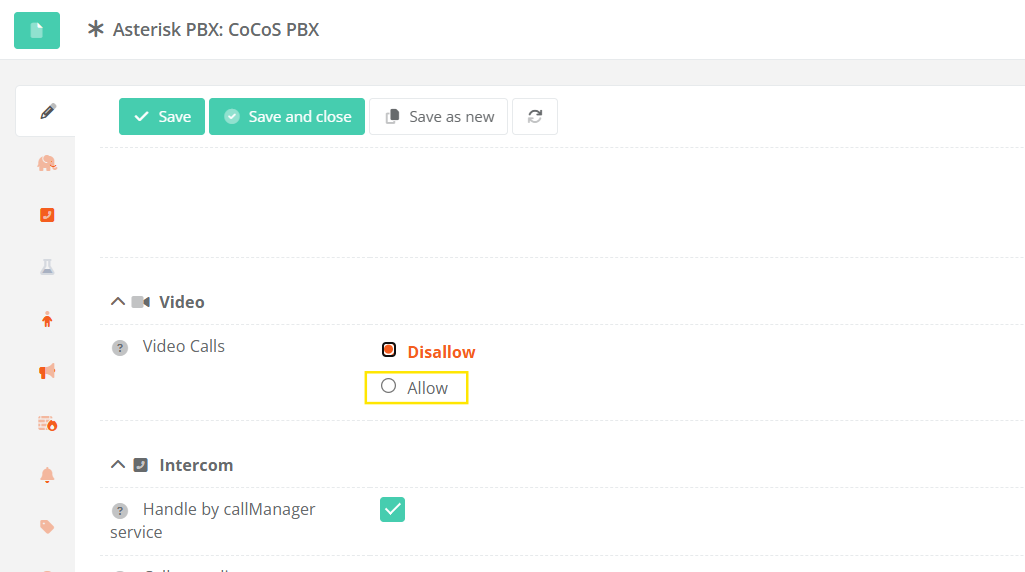
2. Verify that video is enabled in CoCoS.
To verify open the Intercom Server / PBX device in CoCoS, and check if the "Video Calls" setting is enabled.
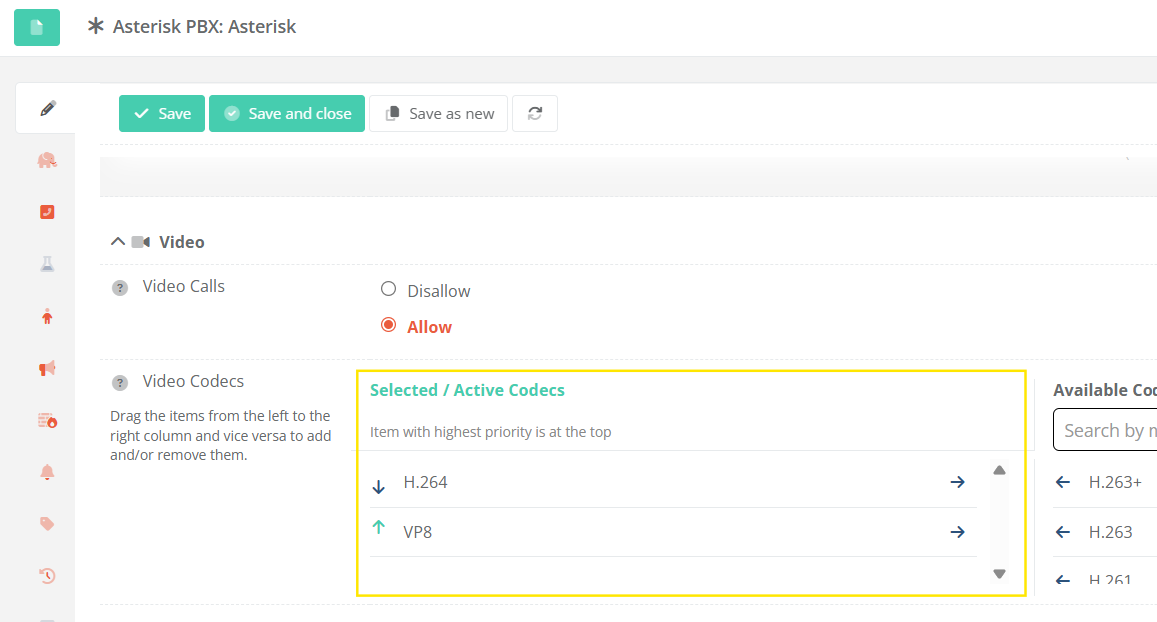
When enabled the also verify that "Video Codecs" has at least one Selected / Active codec. |
|
|
4. Make a new call and check whether video is displayed. |
|
3. Check video codecs
Both sides of the call must support at least one matching video codec.
| 1. Check which video codecs are enabled on the calling SIP intercom/device. | |
| 2. Check which video codecs are enabled on the receiving SIP intercom/device. | |
| 3. Verify that at least one video codec is enabled on both sides. | |
| 4. If there is no matching codec, enable a codec supported by both devices. | |
| 5. Ensure that at least one video codec that is enabled on both sides is also enabled in CoCoS. | |
| 6. Make a new call and check whether video is now displayed. |
A commonly used SIP video codec is H.264, but the codec that should be used depends on the devices involved.
4. Check the network
If video is enabled and a matching codec is available, check whether the video stream can pass through the network.
| 1. Make a call and verify whether audio works. | |
| 2. If audio works but video does not, check whether the firewall allows the required SIP and media traffic. | |
| 3. Check that the configured media or RTP ports are allowed in both directions. | |
| 4. If NAT is used, verify that the correct reachable media address is advertised during the call. | |
| 5. Check the network for packet loss or insufficient bandwidth. | |
| 6. Make another test call after correcting the network configuration. |
A successful SIP registration or working audio call does not automatically confirm that video traffic can also pass through the network.