
How to configure IAX Connection
Requirements
- CoCoS: minimum version
5.0.17 - Asterisk Connector: minimum version
5.0.7
Warning: IAX does not work correctly in CoCoS version 5.0.24. If you use IAX, avoid this version.
Question or Case description
This article explains how to configure an IAX connection between a CoCoS environment and an external PBX system.
An IAX connection allows calls to be exchanged between CoCoS and another telephone system. This makes it possible for intercoms, SIP devices, and other connected endpoints to communicate between both platforms.
Typical situations where this configuration is used:
- An intercom from an external PBX must be reachable from CoCoS
- Calls from CoCoS must be routed to another PBX
- An existing PBX environment must be integrated with CoCoS
- CoCoS call handling features must be made available to another system
Possible symptoms when the connection is not configured correctly:
- Intercom devices are unreachable
- Calls do not arrive
- Calls disconnect immediately
- The trunk registration fails
- Audio communication is not established
Application
This configuration is commonly used when a CoCoS environment needs to communicate with another PBX using the Inter Asterisk eXchange (IAX) protocol.
Examples include:
- Connecting two PBX systems
- Migrating an existing intercom environment to CoCoS
- Integrating external SIP intercom devices
- Connecting multiple locations through IAX
How To
Requirements
Before starting, verify that the following components are available:
- A working CoCoS environment
- A properly configured CoCoS Asterisk/PBX server
- An external PBX with IAX support
- Network connectivity between both systems
- IAX authentication credentials
Step 1 - Prepare the External PBX
First, configure an IAX trunk on the external PBX.
The exact configuration depends on the PBX vendor, but the following settings are typically required:
| Setting | Value |
| Username | IAX authentication username ( also see IAX Username and Password Requirements ) |
| Password | IAX authentication password ( also see IAX Username and Password Requirements ) |
| Host / IP Address | IP address of the CoCoS environment |
| Port | 4569 |
Important: The username and password must match exactly on both systems.
IAX Username and Password Requirements
When configuring an IAX connection, the username and password must meet the following requirements:
| Field | Allowed characters | Length |
|---|---|---|
| Username | Letters only (A–Z, a–z) | 1–12 characters |
| Password | Letters and numbers (A–Z, a–z, 0–9) | 1–8 characters |
Important: Spaces and special characters are not supported. The username cannot contain numbers.
Step 2 - Create a New IAX Trunk in CoCoS
|
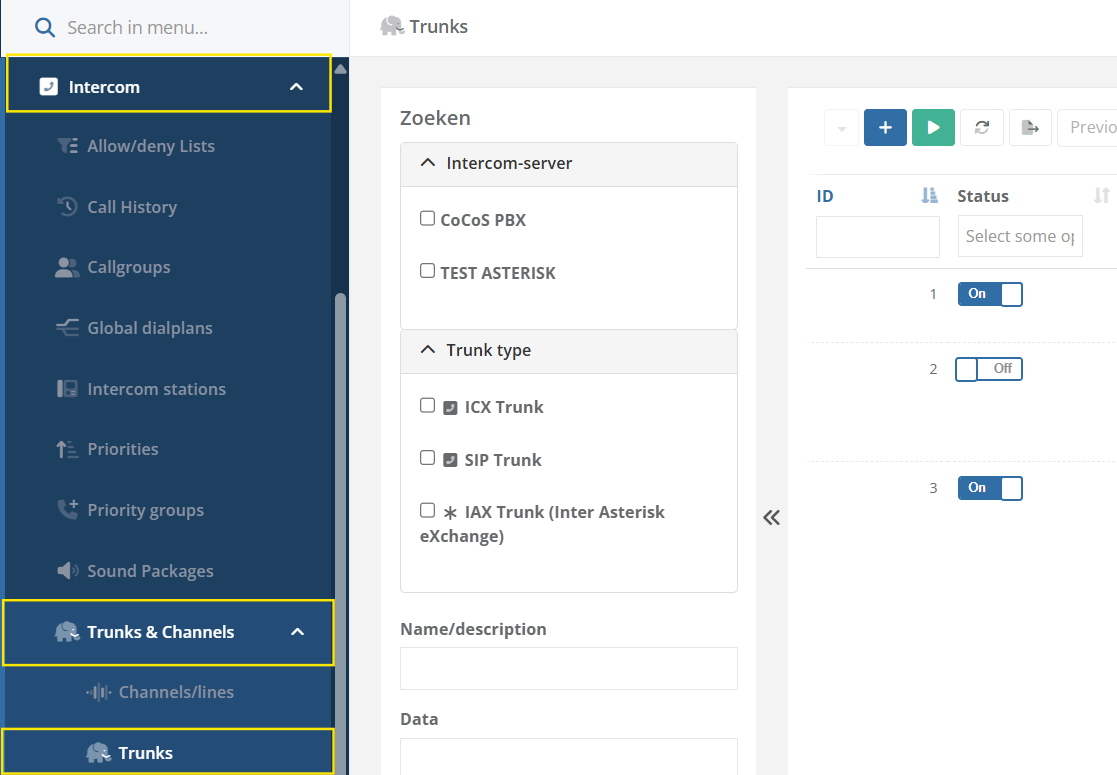
Open the CoCoS Management environment, and navigate to: Intercom → Trunks and Channels → Trunks |
|
|
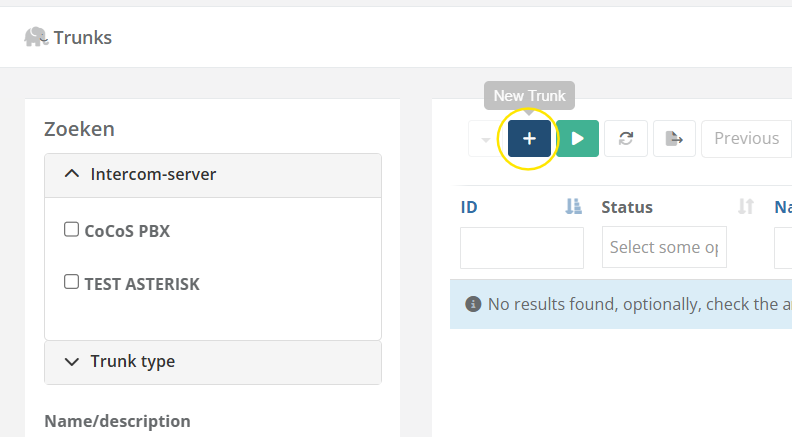
Click the plus icon to create a new trunk. |
|
|
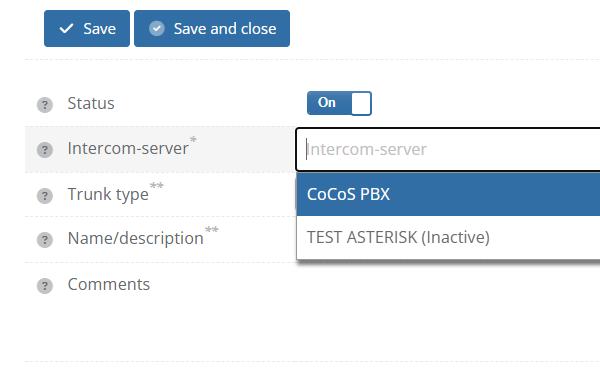
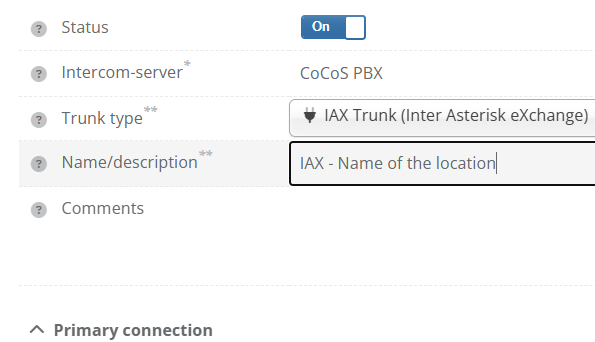
Select the appropriate Asterisk/PBX server in the Intercom Server field. |
|
|
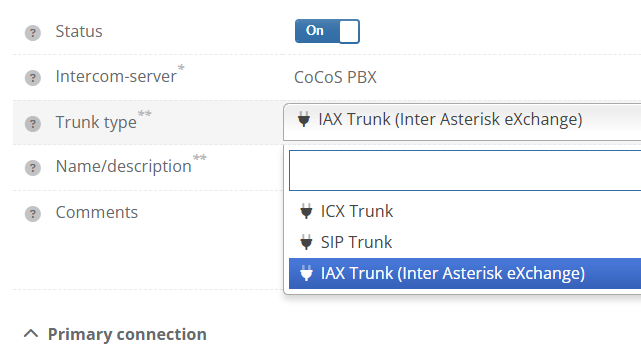
Select the trunk type: Inter Asterisk eXchange Trunk. |
|
|
Enter a clear and recognizable name in Name / Description. |
|
Step 3 - Configure the Basic Trunk Settings
|
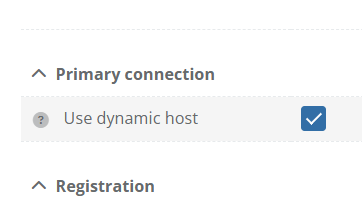
Enable Use Dynamic Host only when a dynamic host configuration is required.
Not sure whether to enable Dynamic Host?
Enable Dynamic Host if the other PBX registers with the CoCoS PBX. If the other PBX has a known IP address or domain name and does not register with CoCoS, leave this option disabled and enter its address instead.
If you're unsure, check the IAX settings of the other PBX or contact its administrator or provider. |
|
|
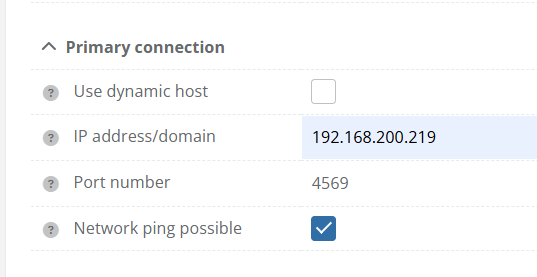
If not using Dynamic Host:
Enter the IP address or domain name of the external PBX in IP Address / Domain, and enter the correct port number. IAX normally uses port 4569. |
|
|
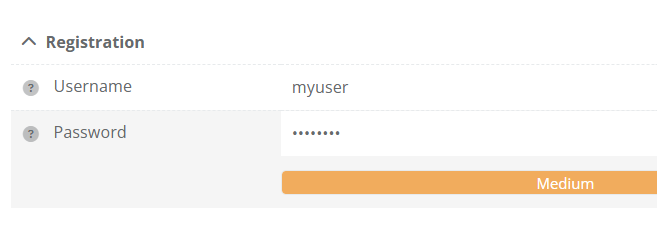
Enter the IAX username in the Username field. |
|
|
Enter the correct password in the Password field. |
|
|
Click Save and Close to store the trunk configuration. |
Step 4 - Link SIP/Intercom Devices to the Trunk
After creating the trunk, the external devices must also be created in CoCoS.
This allows CoCoS to know which calls should be routed through the IAX connection.
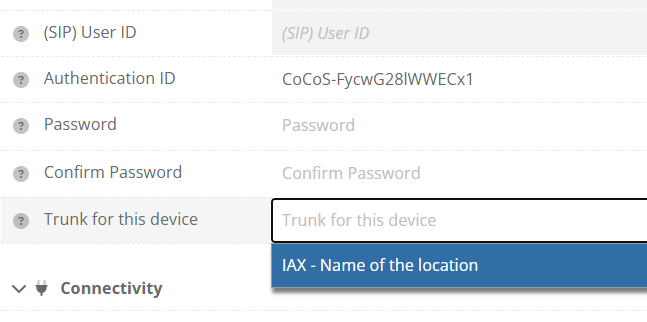
Note: Fields "Authentication ID", "Password", and others not mentioned in this manual are not needed.
|
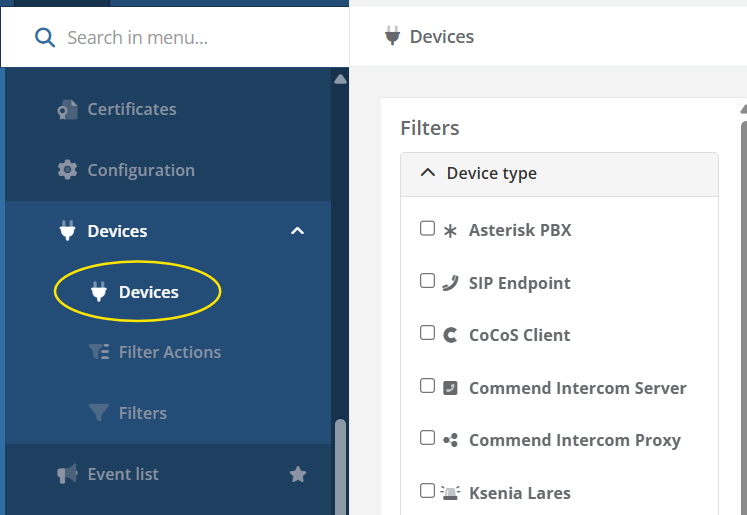
Navigate to: System → Devices |
|
|
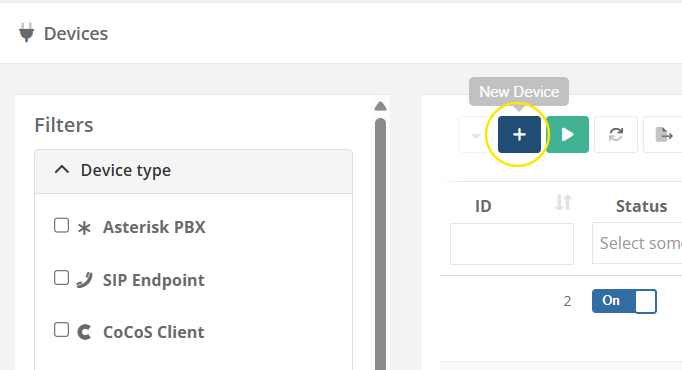
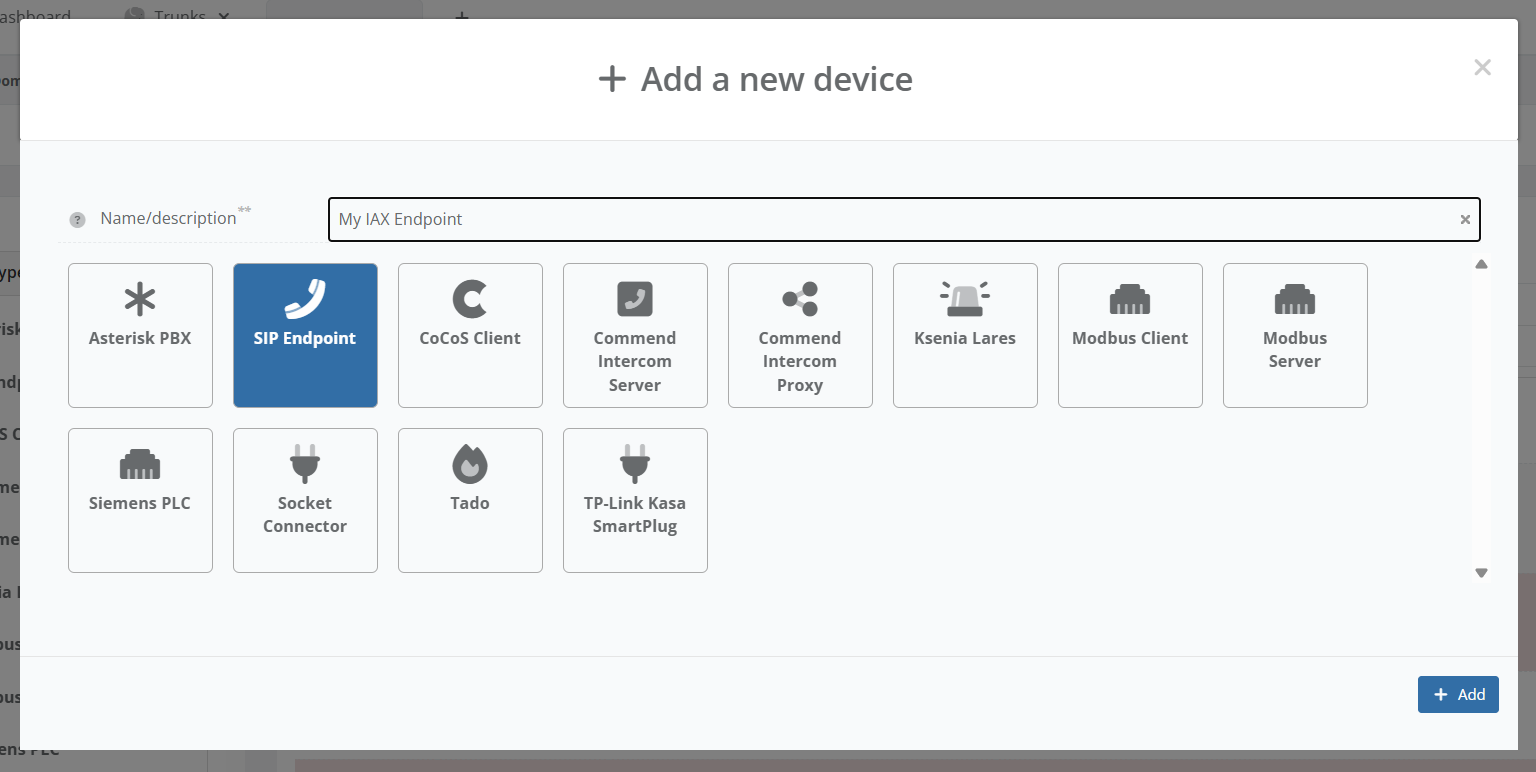
Create a new SIP endpoint device. |
|
|
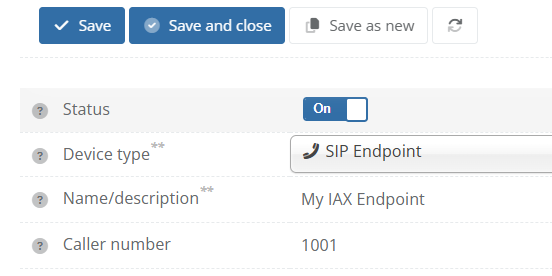
Enter the extension number of the external device. |
|
|
Link the device to the previously created IAX trunk. |
|
|
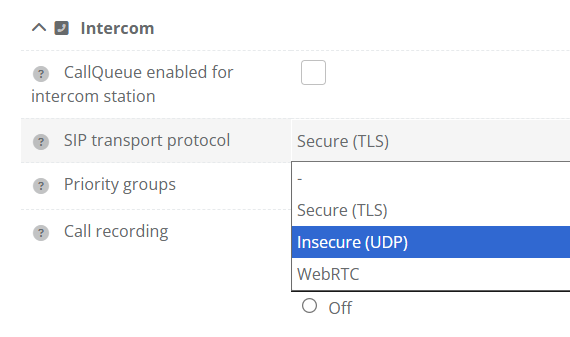
(Optional) You may need to change SIP transport protocol to UDP. |
|
|
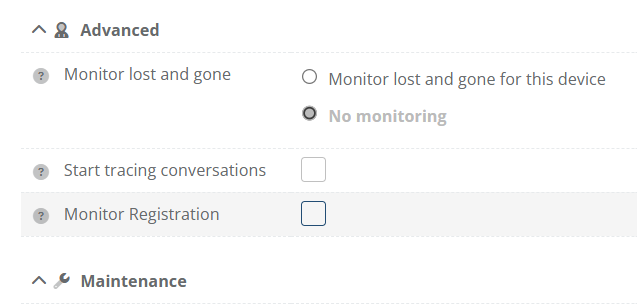
Disable registration monitoring since there is no registration to monitor. |
|
|
Click Save and Close to store the device configuration. |
Repeat these steps for every device that must be reachable through the IAX connection.
Validation
The configuration is considered successful when:
- The trunk registers successfully
- Both systems can reach each other
- Calls work in both directions
- Audio communication functions correctly
- No authentication or other errors appear in the logs
Test Scenario 1 - External PBX to CoCoS
| Test | Expected Result |
| Call a CoCoS intercom from a device on the external PBX. | The CoCoS intercom rings and a call can be established. |
Test Scenario 2 - CoCoS to External PBX
| Test | Expected Result |
| Call a device on the external PBX from a CoCoS intercom. | The external device rings and a call can be established. |
Common Causes of Issues
| Problem | Likely Cause |
| Trunk registration fails | Incorrect username or password |
| No connection possible | Firewall or network restriction |
| Calls fail immediately | Incorrect IP address or port number |
| One-way audio | NAT or firewall configuration |
| Devices unreachable | Endpoint not linked to the trunk |
References
Describe where to find external answers or extra information's